

How to open an online PDF in Cluing?
An online PDF can be opened with Cluing through the Dashboard, as well as directly through the extension.
Opening a PDF through the extension
Section titled “Opening a PDF through the extension”To open an online PDF directly in Cluing, follow these steps:
-
Click the Cluing extension shortcut while viewing online PDF.
-
It will automatically open a PDF in the Cluing Reader, ready for you to highlight and add notes.
Opening a PDF through the Dashboard
Section titled “Opening a PDF through the Dashboard”You can open an online PDF in two ways from the Dashboard:
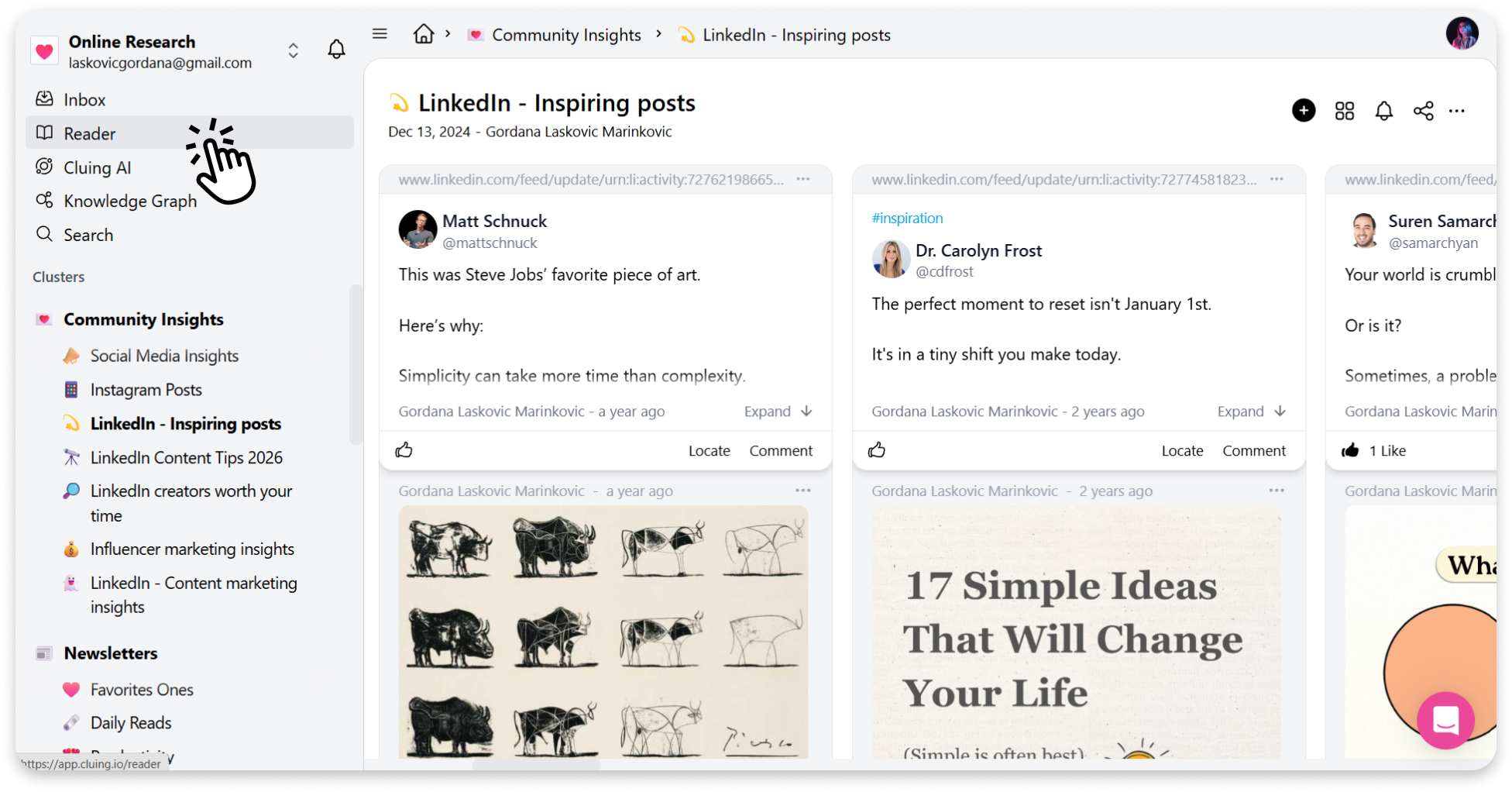
#1 Using the ’‘Reader’’ Button
- On the left sidebar, click Reader
-
Paste the PDF link into the field provided.
-
Click Open from URL.
#2 Using the Quick Add Button
-
Within any Topic, click the Quick Add button.
-
Choose to add a link and paste the PDF URL there to open it directly.
Once your PDF is in, it becomes part of your workspace. You can then highlight, comment, and collaborate on its content.