Export Options
Exporting Your Topics and Snippets from Cluing
Section titled “Exporting Your Topics and Snippets from Cluing”Cluing gives you several ways to take your saved insights outside the app - whether you need a quick copy-paste, a structured file, or a shareable document.
Here’s an overview of all available export options.
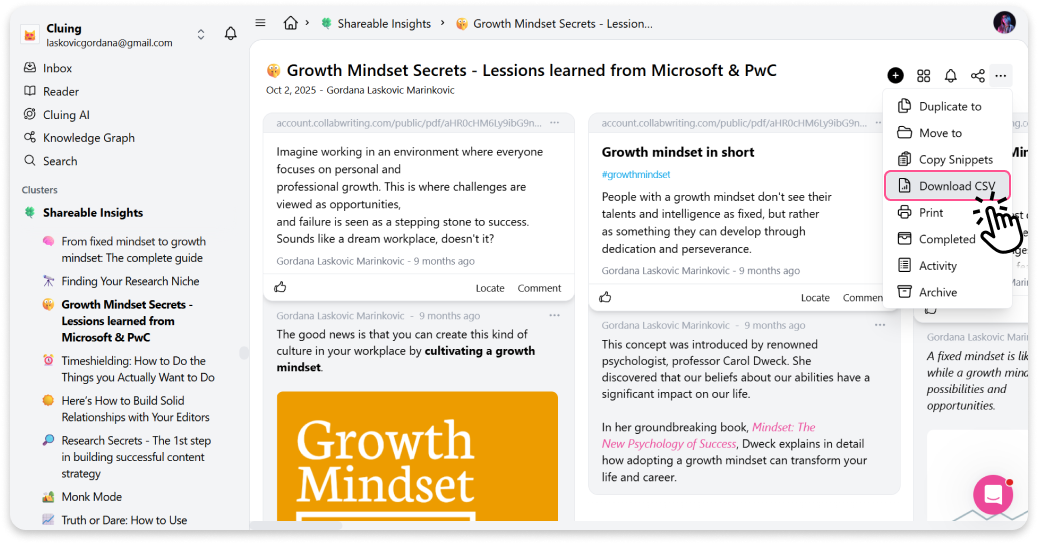
Download as CSV - Full Topic Export
Section titled “Download as CSV - Full Topic Export”Export an entire Topic, along with all its snippets, as a structured CSV file.
-
Go to your Dashboard
-
Open the Topic you want to export
-
Click the three dots in the Topic menu
-
Select “Download CSV”
The file opens in Google Sheets or Excel, where you can sort, filter, and analyze your data.
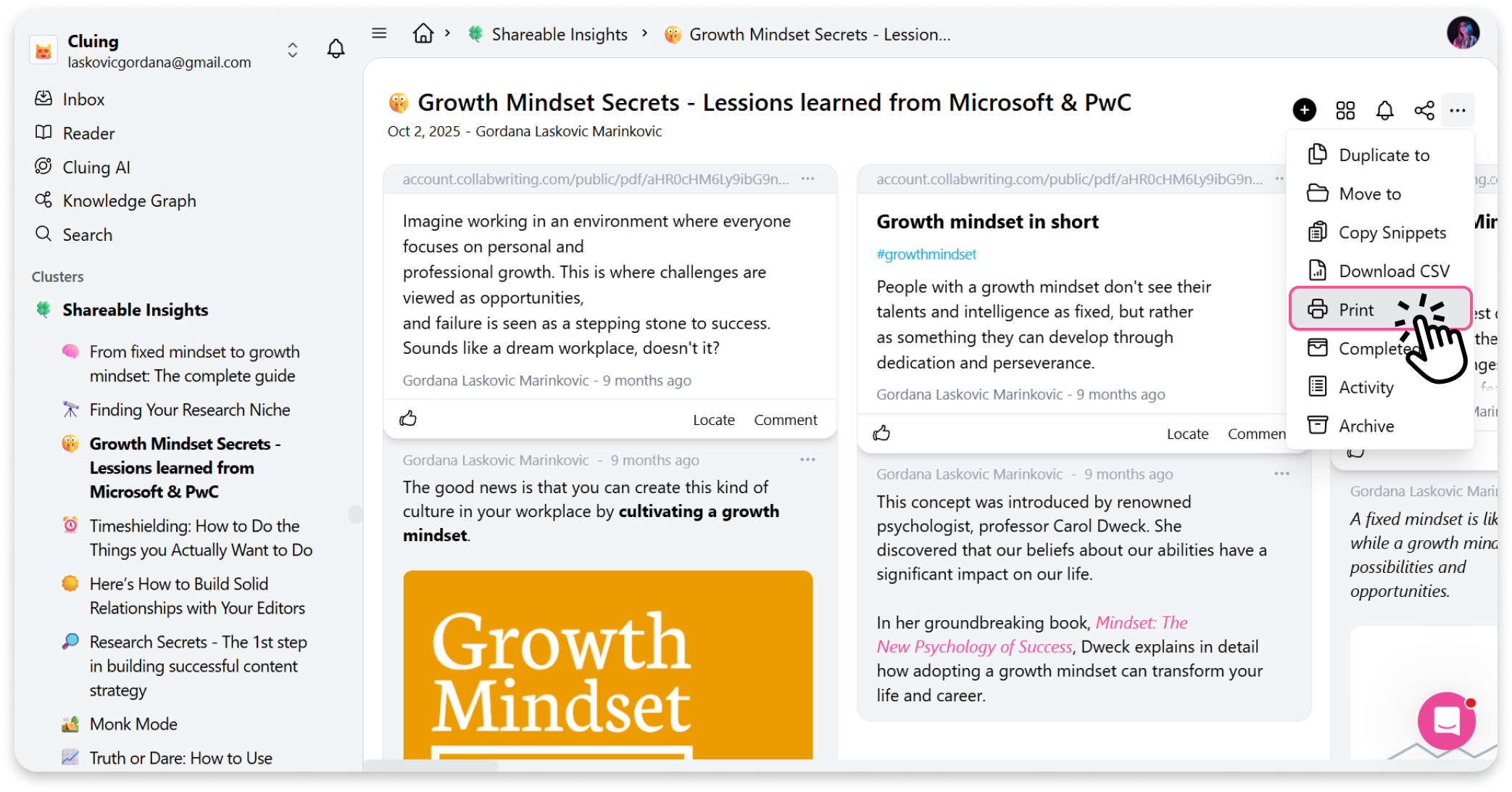
Print or Save as PDF - Topic as a Document
Turn any Topic into a clean PDF, with all snippets and comments included.
-
Go to your Dashboard
-
Open the Topic you want to export
-
Click “More options” (three dots) in the top right corner
-
Choose “Print”
-
From the print dialog, select “Save as PDF” for a digital file - or send it directly to your printer
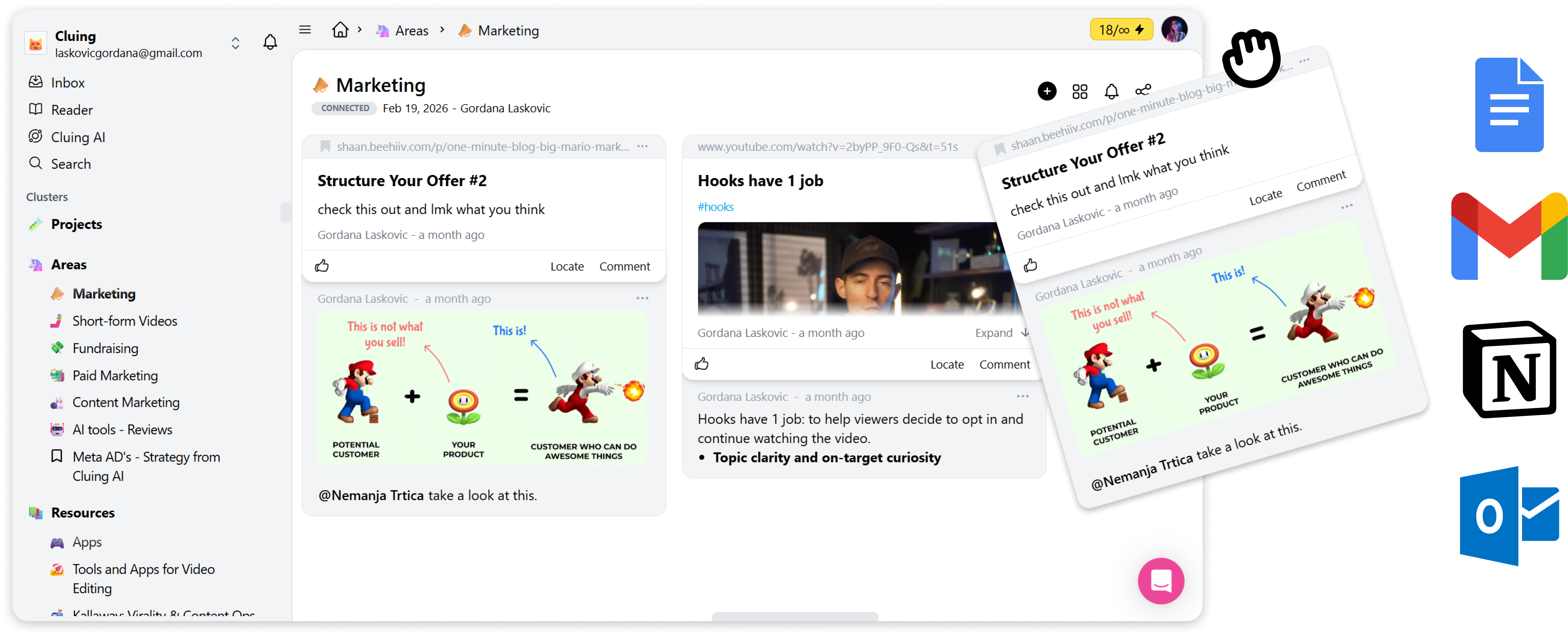
Drag & Drop - Single Snippets to Another App
Section titled “Drag & Drop - Single Snippets to Another App”The fastest way to move individual snippets to another tool.
Open a Topic, grab the snippet you want, and drag and drop it directly into Google Docs, Notion, Outlook, Gmail, or any other app that supports text input.
The content lands exactly where you drop it - no copying, no formatting lost.