How to add webpage annotations on Mobile?
You can annotate webpages on mobile in three ways:
-
On Edge Mobile (with the Cluing extension)
-
On Firefox Mobile (with the Cluing extension)
-
On any mobile browser (without extension, using the Cluing Mobile Apps)
Annotate webpages on Edge Mobile (extension required)
Section titled “Annotate webpages on Edge Mobile (extension required)”Once you have the extension on Edge installed, capturing snippets inside your mobile browser is super simple:
-
Open any webpage.
-
Highlight a piece of text you want to save.
-
A shortcut button (small pop-up) will appear next to your selection.
-
Click “Save Highlight” button to open a quick-save window.
From there, you can:
-
Choose a Topic and a Cluster where you want to save the snippet
-
Add a comment, tag, or mention someone
-
Confirm and save, all in a few clicks
Highlight and Annotate with the Cluing Mobile App
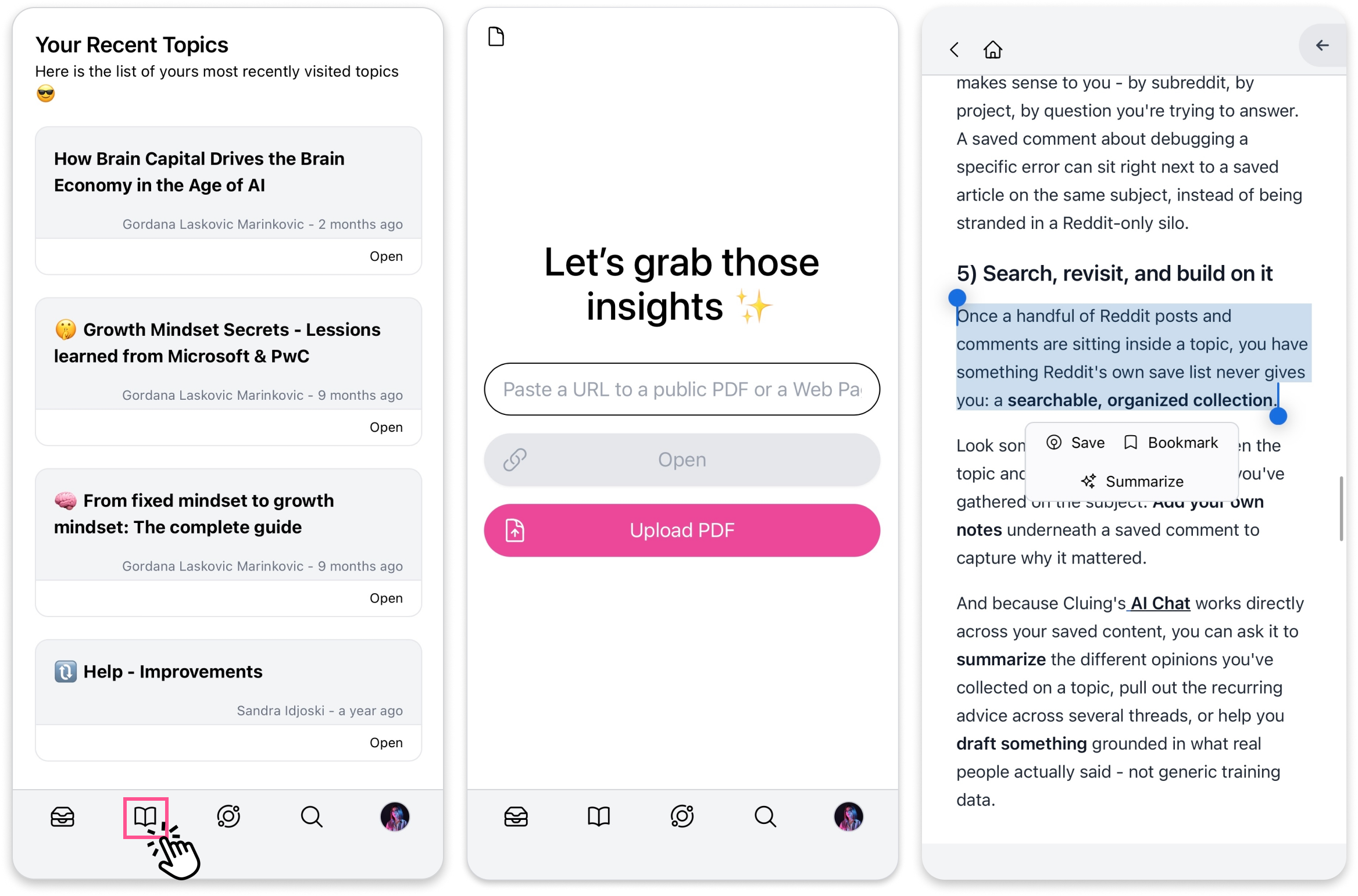
Section titled “Highlight and Annotate with the Cluing Mobile App”If you don’t want to install an extension, you can use the Cluing mobile app with the built-in Cluing Reader.
Here’s how:
-
Download the Cluing mobile app - available for iOS and Android
-
Open the app and tap the Reader icon in the bottom navigation bar
-
Paste the link to the webpage you want to annotate
The page will open inside Cluing Reader, where you can highlight text, add comments, mention teammates, and add #tags.