

Connecting Claude to Cluing via MCP
Before you start, make sure you have:
-
A Claude account
Step 1: Open Claude settings
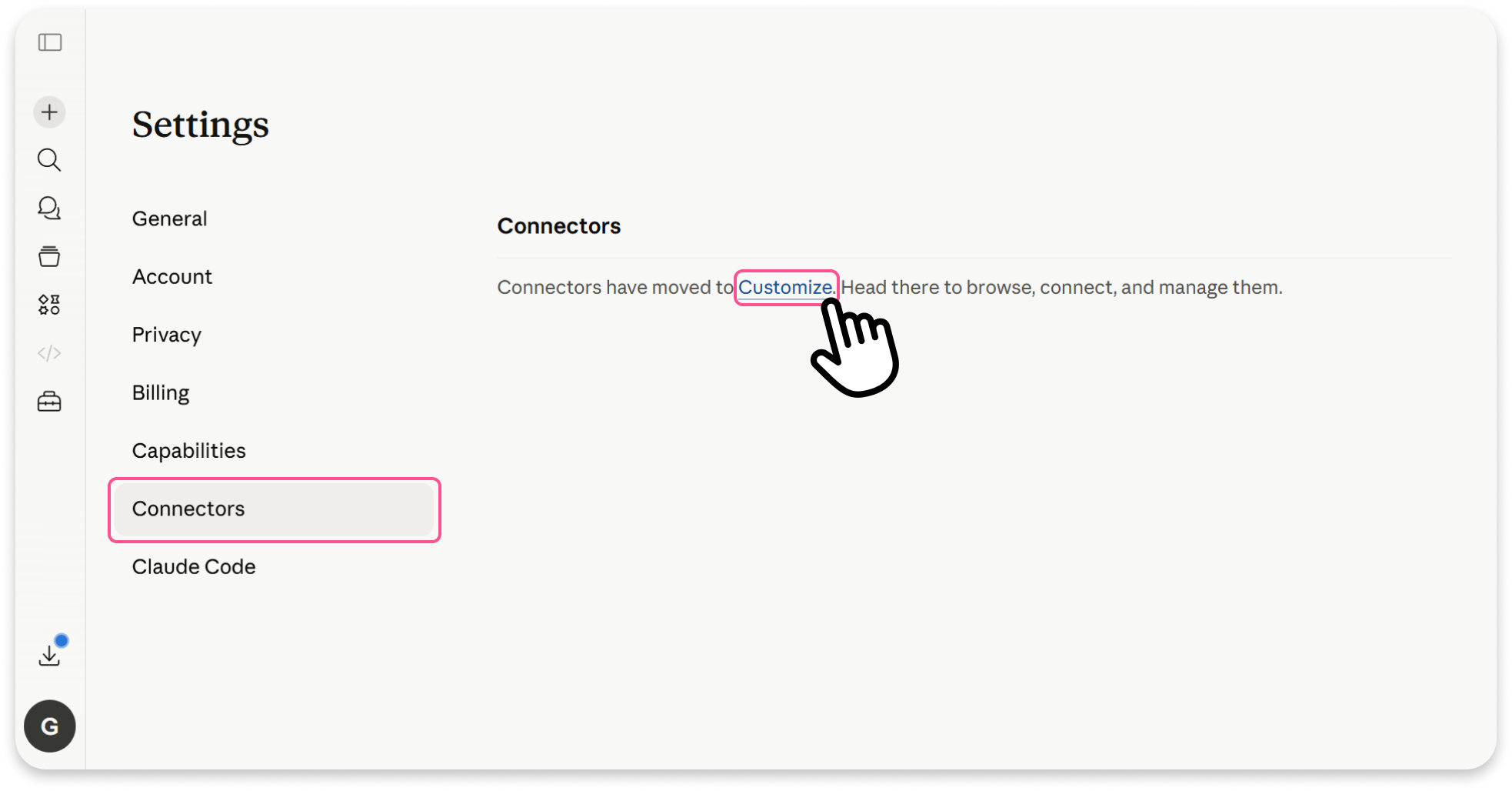
Section titled “Step 1: Open Claude settings”Sign in to Claude, then go to: Settings → Connectors → Customize
Step 2: Add a new connector
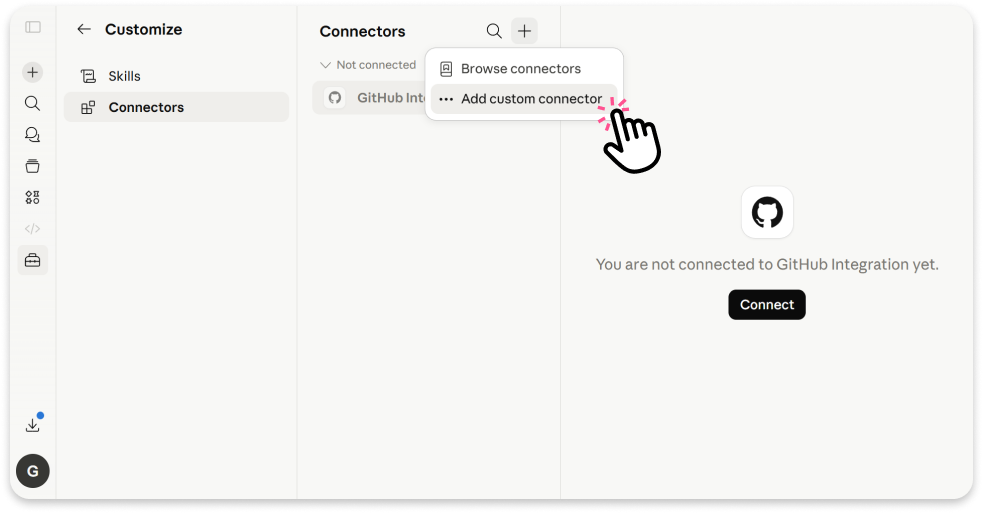
Section titled “Step 2: Add a new connector”Click the “+” button, then choose: Add custom connector
Step 3: Paste the MCP URL
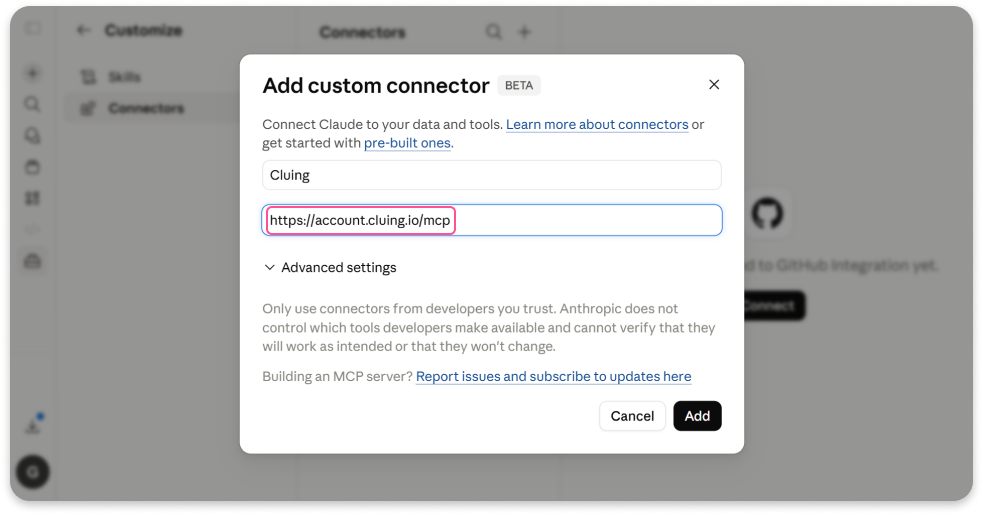
Section titled “Step 3: Paste the MCP URL”In the connector field, paste the following URL: https://account.cluing.io/mcp
Step 4: Set permissions
Section titled “Step 4: Set permissions”Next, choose the permissions you want to allow for Cluing. These determine what Claude can access in your workspace.
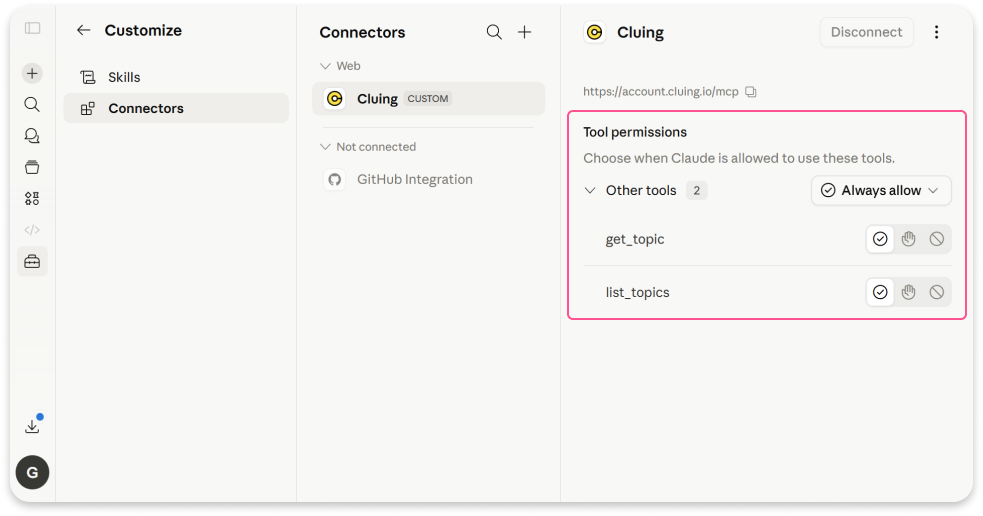
Once connected, Claude will be able to access and work with your Cluing snippets directly through MCP.
Once Connected: What You Can Do in Claude
Section titled “Once Connected: What You Can Do in Claude”After connecting Cluing MCP, you can ask Claude to turn your conversations and insights into Snippets, Ideas, and Topics without manually creating them yourself.
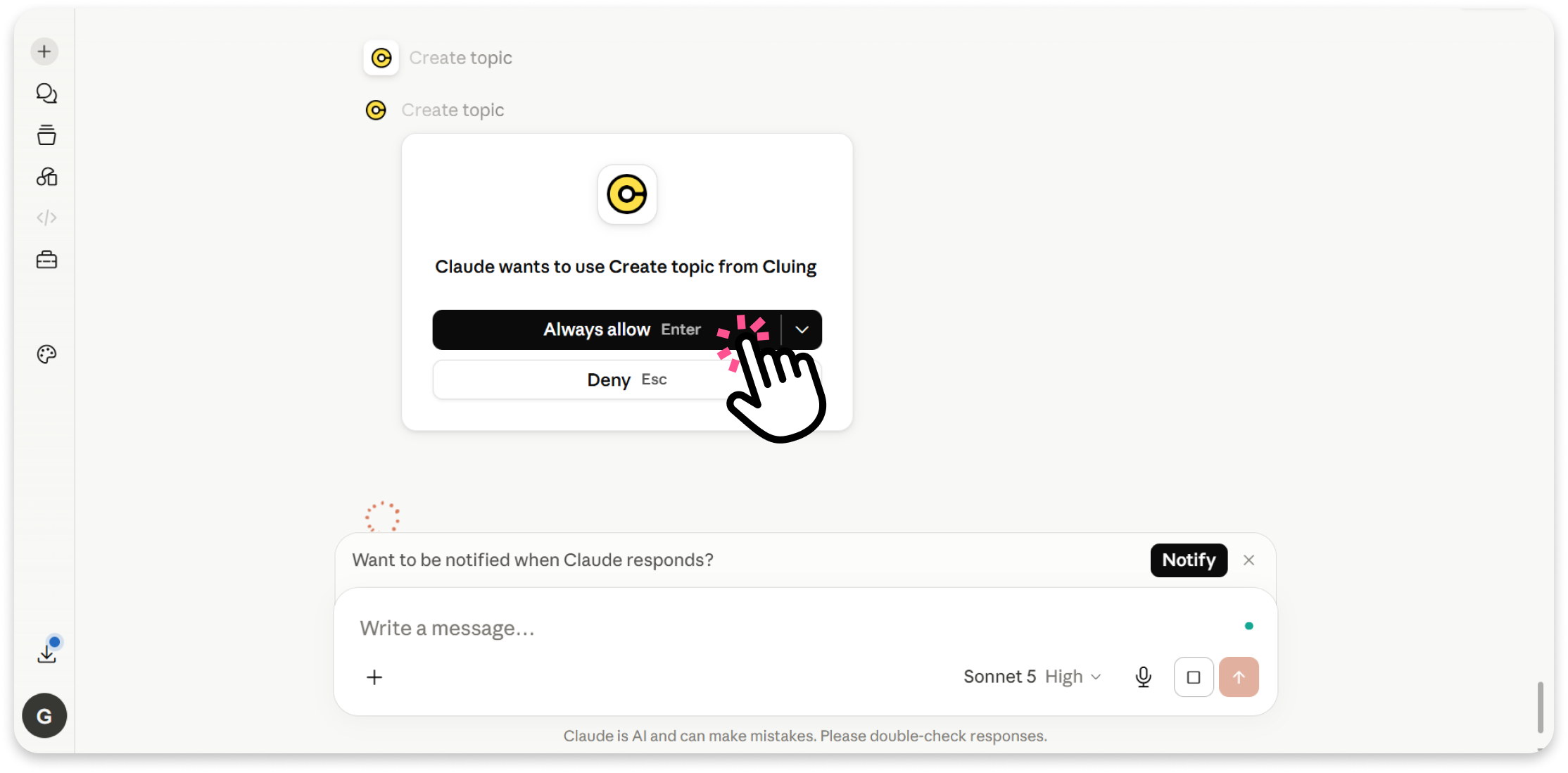
To get the best results, give Claude clear instructions about what you want to create and where you want the content saved. For some actions, such as creating a new Topic or adding content to your workspace, Claude may ask you to approve specific permissions before completing the action.
What Claude Can Create in Cluing
Section titled “What Claude Can Create in Cluing”You can ask Claude to create:
-
Summary Snippets - turn a conversation or selected content into a concise summary you can reference later.
-
Bookmark Snippets - save important information, links, or resources for quick access in your workspace.
-
Idea Snippets - capture thoughts, insights, or opportunities you want to develop further.
-
Topics - organize related Snippets into a dedicated Topic to keep your research structured.
Give Claude Clear Instructions
Section titled “Give Claude Clear Instructions”When asking Claude to create content in Cluing, include details such as:
-
Which workspace the content should be added to
-
What type of content you want to create
-
How you want the content organized (for example, hashtags, emojis, titles, or structure)
For example:
Claude will create the requested content in Cluing, and your workspace will update automatically as new Snippets, Ideas, or Topics are added.