

How to create and use Buckets
How to create a Bucket
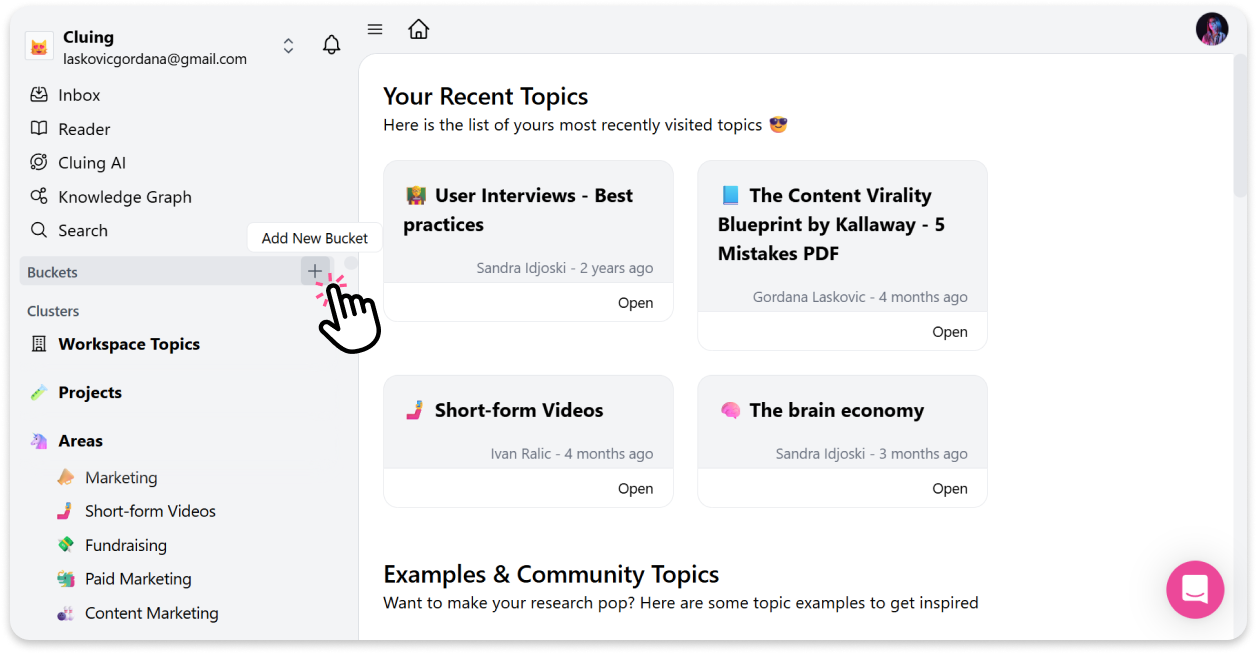
Section titled “How to create a Bucket”When you open your Dashboard, you’ll find Buckets in the left sidebar, just under the search bar.
-
Click the “+” button to create a new Bucket.
-
Give your Bucket a name.
-
Select an existing tag or create a new one.
How it works
Section titled “How it works”-
Existing tag - the Bucket instantly pulls in all snippets that already include that tag
-
Create a new tag - the Bucket starts collecting snippets as soon as you begin using that tag. Every time you add that tag to a snippet, it automatically appears inside the Bucket
Why is this useful
Section titled “Why is this useful”Buckets are especially helpful for workflow-based tags like “To Do”. For example, you can collect all your tasks in one place, and as you complete them, simply mark snippets as done - keeping everything organized and up to date automatically.
Good to know
Section titled “Good to know”-
It’s the same snippet - A snippet shown in a Bucket isn’t a copy, it’s the same snippet that lives in its original Topic, just sorted in by its tag. Any change you make in one place (edits, comments, marking it Done) instantly appears in the other
-
Buckets can’t be archived — if you no longer need one, you can delete it
-
Deleting a Bucket does not delete your snippets - The Bucket disappears, but every snippet remains safe in its original Topic