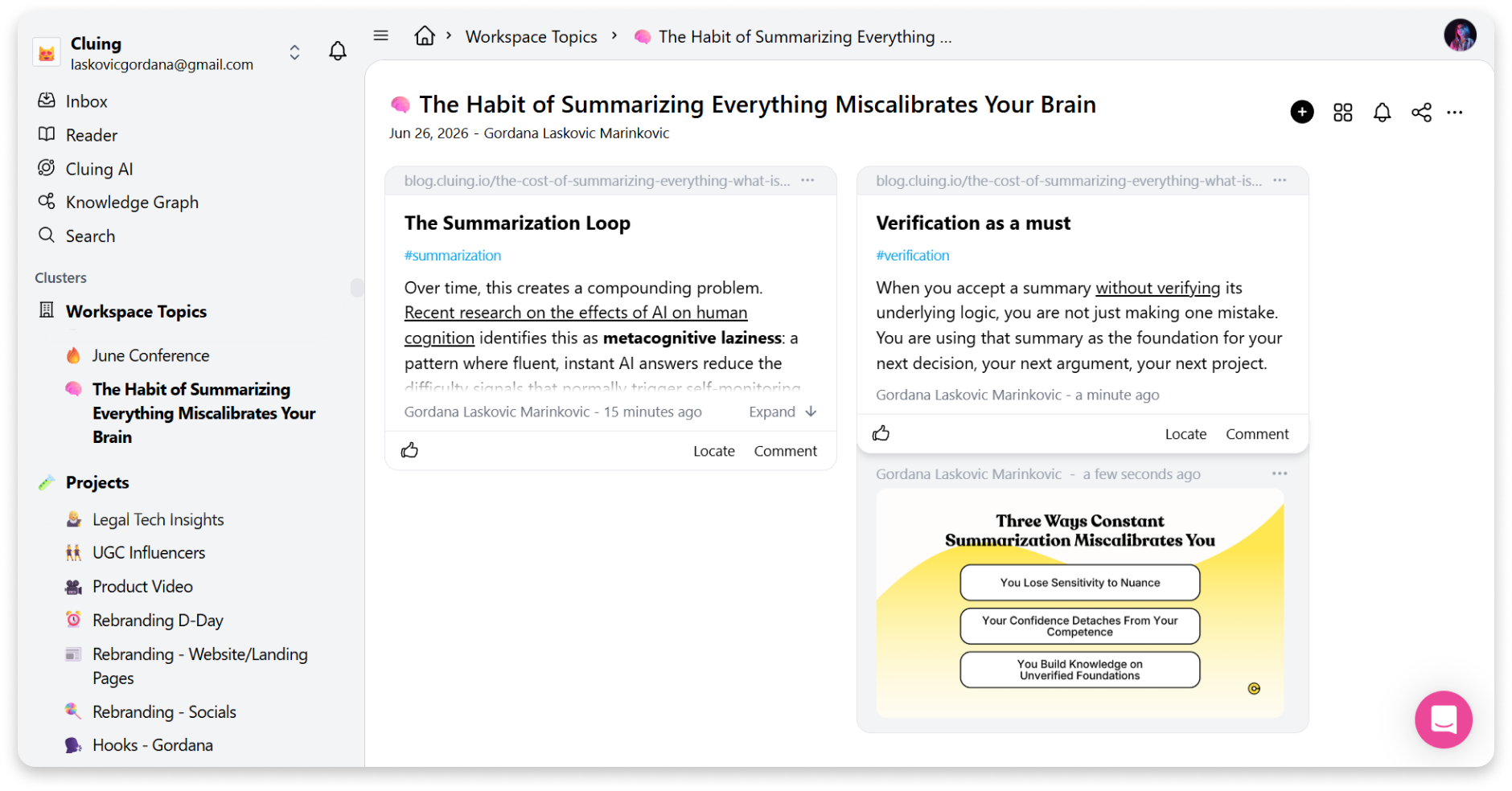
How to install the Cluing extension and create your first topic
First step - Install the extension
Section titled “First step - Install the extension”The Cluing browser extension is used for creating snippets on different web pages, YouTube videos, or social media like LinkedIn or X.
To install the Cluing browser extension, you can go to Chrome Webstore, the Edge Add-ons, or the Firefox Add-ons store. Find Cluing and then just click Add to Chrome/Edge/Firefox button
🎊 That’s it, you’ve just successfully installed our browser extension. Don’t forget to pin it for easy access.
Topics and Snippets explained
Section titled “Topics and Snippets explained”Snippets are the core of Cluing - they can be anything from a highlight created on a webpage, a saved post from LinkedIn, or even a snapshot of a YouTube video.
Always locatable, always collaborative.
Topics are where you organize your snippets from different pages and sources, and they can further be organized into Clusters.
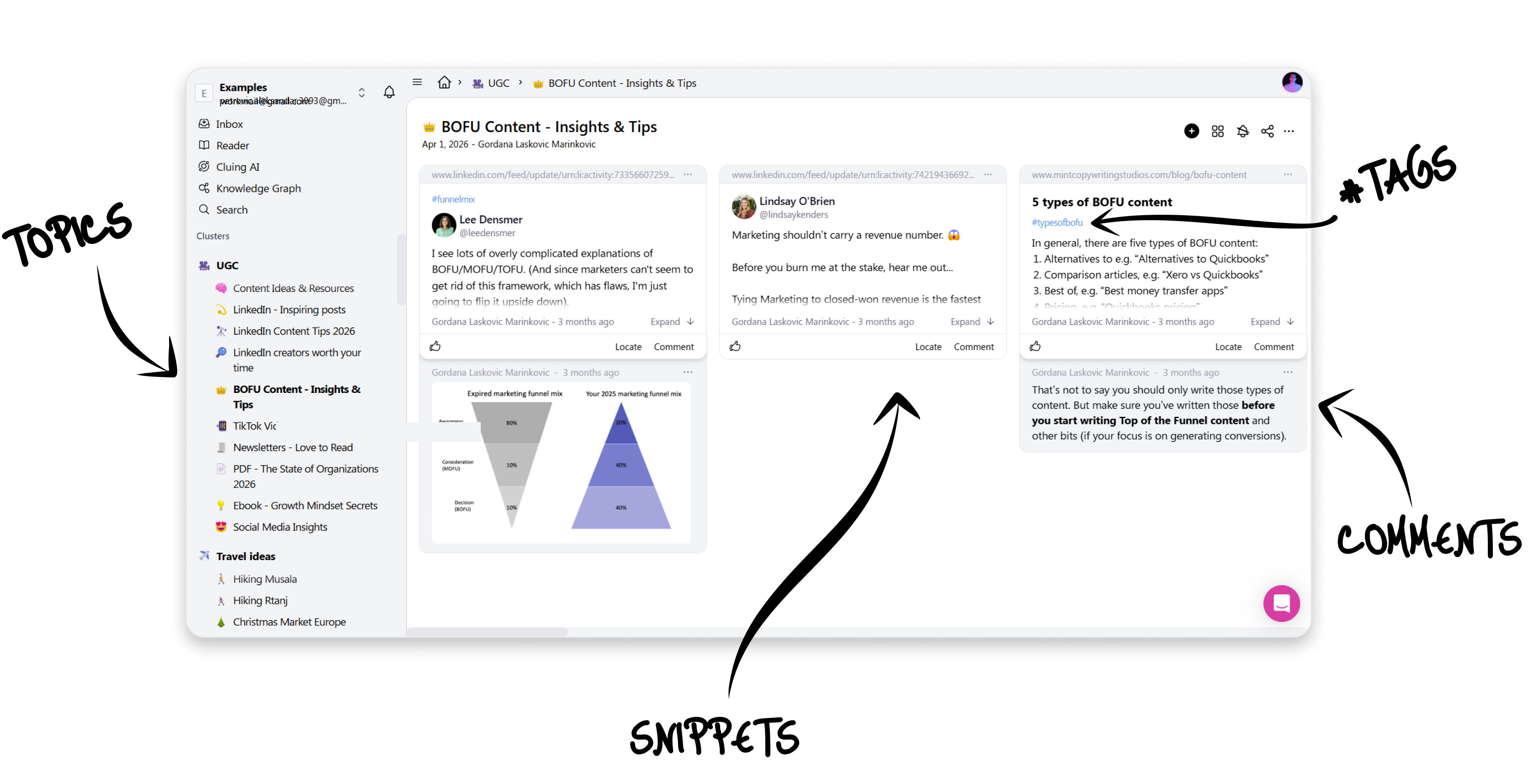
Create, add comments, and share your first Topic
Section titled “Create, add comments, and share your first Topic”The Cluing extension isn’t just a place where you can save quick snippets, but also a place where you can create new topics, attach your own insights in the form of comments, and share them with members of your team. Here’s how to do it:
-
To create a new topic, click the + icon in the top right corner of the extension.
-
Then, select any piece of text on the webpage, and it will appear as a highlight in the extension. To create a new snippet, just press “Enter” or click the “Create” button.
-
To leave comments on your snippet, you just click the Comment button, add any text, link, or screenshot, and then press “Enter” or click the “Comment” button once again.
-
After your Topic is created, you can share it by first setting up the permissions and copying the link at the bottom of the sidebar.
The Cluing Dashboard
Section titled “The Cluing Dashboard”To go to your dashboard, where you can further organize your snippets and topics, simply click the button located at the bottom right of the extension.
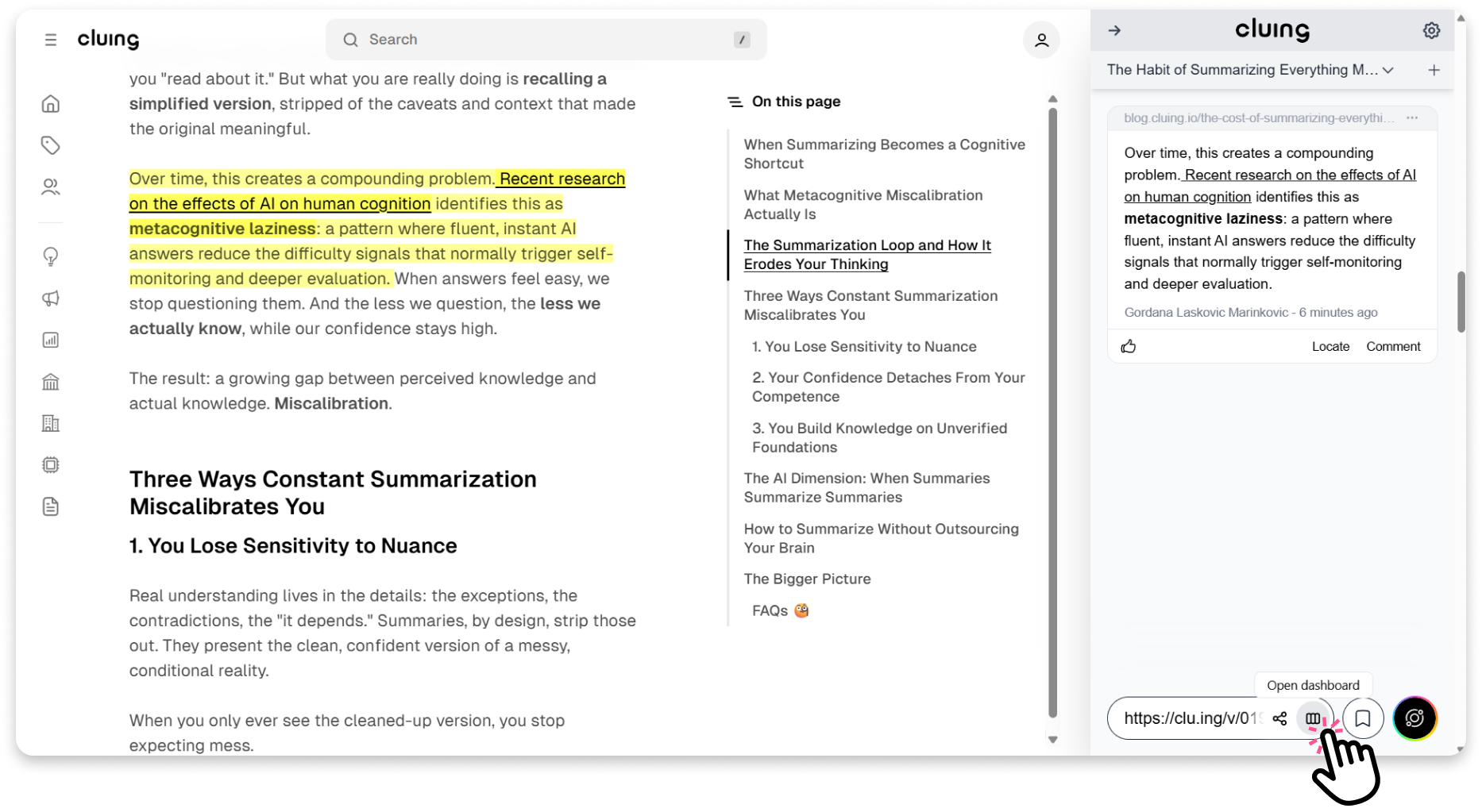
Once you click it, your Dashboard with all the previously collected snippets will open.